
Help the assistant work from the project, not just the prompt.
A useful answer needs more than the last message. The assistant needs the goal, the current work and the decisions already made. Knotpad keeps that project context together.
How to connect your assistantStart with the goal
Write a brief that explains the outcome and what success looks like. Add checkbox tasks beneath it. Those lines become tracked work, so the assistant can read both the instruction and the reason behind it.
Keep progress visible
A compatible MCP client can read notes, claim tasks and update status. You can review the same work on a board, list or calendar. Task claiming helps coordinate ownership, but it does not lock files in another application.
Save the outcome
Ask the assistant to append what changed, what was checked and what remains open. A completed checkbox records progress. The delivery note gives the next session enough information to understand the result.
Choose how much context to share
Personal Free includes local MCP. Personal Pro adds sync, remote MCP and additional planning context. Team Pro provides a shared team workspace. Your assistant’s capabilities, connection requirements and data handling still depend on the service you choose.
Try it in your project.
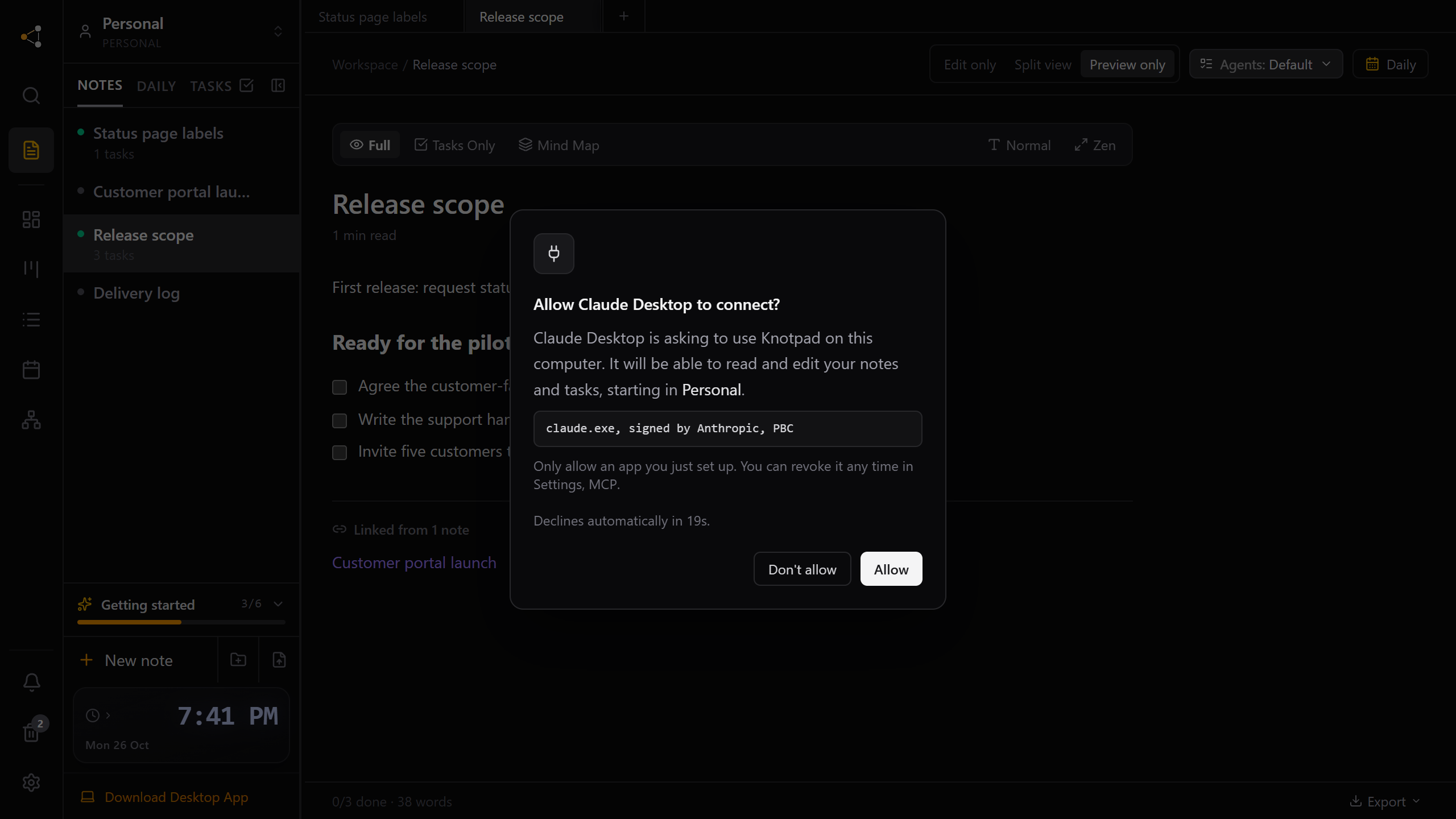
Choose which AI apps can open your project notes
On the Knotpad desktop app, each AI app asks once and you click Allow. No token to paste, and the approval belongs to that program.
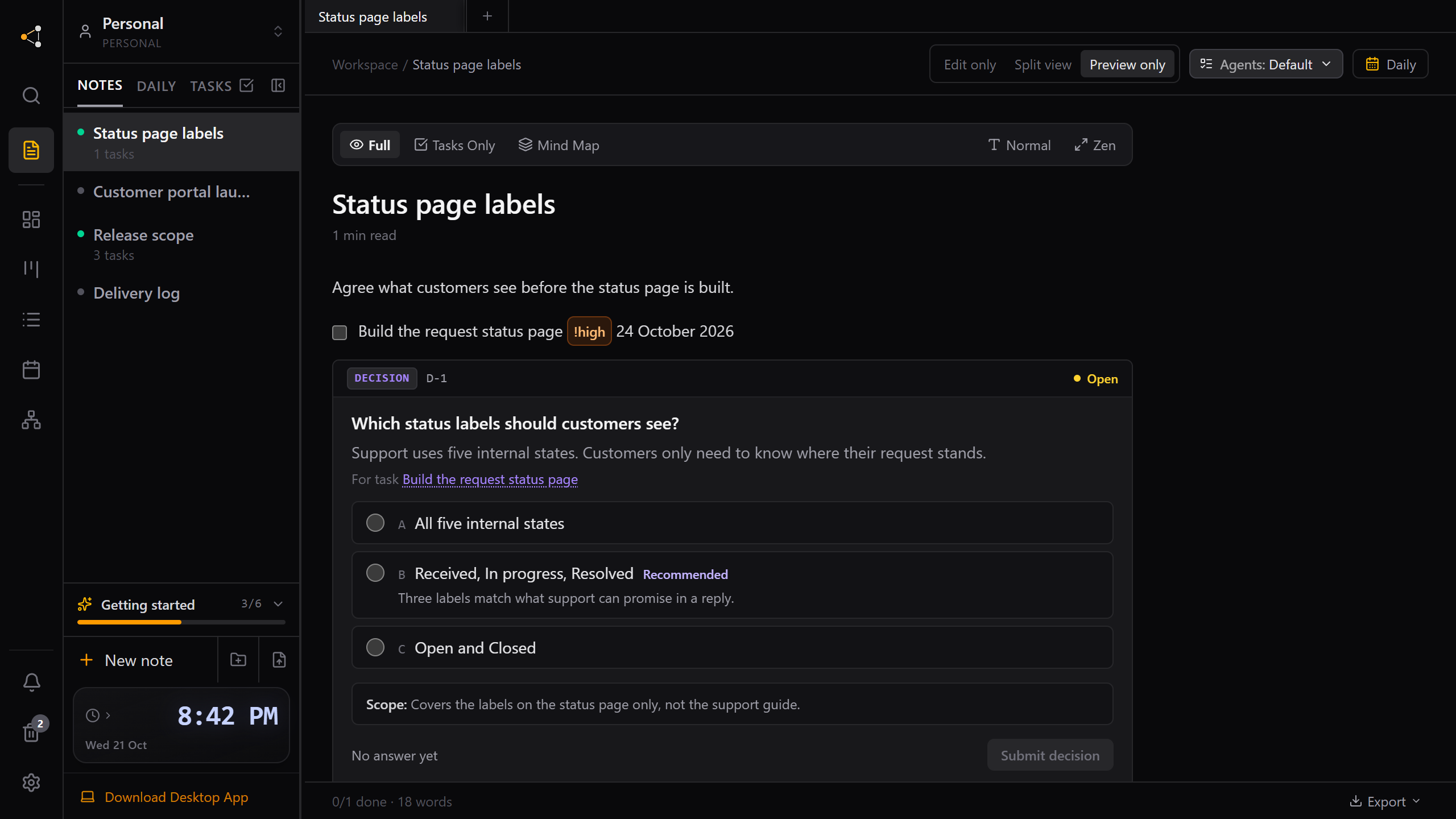
Answer your AI assistant's questions in the project, not the chat
When an assistant needs a choice from you, it can leave a decision card in the note. Answer when you are ready, and the next session picks it up.
Give your next session a better starting point.
Use Knotpad in your browser on Mac or Windows, or start with the free Windows app. Add your brief, turn the plan into tasks, and connect your assistant when you’re ready.
Full Personal Pro access in your browser.
No card required.