
Knotpad Stop explaining your project again.
Your brief is in a document. Your tasks are on a board. The decisions are buried in a chat. Knotpad keeps them together, so you and your AI can pick up from the work you recorded.
Full Personal Pro access in your browser.
No card required.
A new chat should not mean a fresh start.
Keep the brief, decisions and results together. A connected assistant can read that record, so the next session has somewhere to start.
From a brief to work you can pick up.
Keep the plan, progress and outcome connected. This example follows a customer portal launch, but the same approach works for research, client work and your next side project.
Plan with one AI. Get a second opinion from another.
Save your plan, decisions and open questions in Knotpad. Ask another connected assistant to read the notes, challenge your assumptions and continue the planning. Keep the review beside the original plan so either assistant can pick up the updated work.
Cloud MCP with OAuth sign-in is included in Personal Pro and Team Pro. Connect Claude or ChatGPT through a compatible connector. You choose what gets saved; private chats stay in their original service.
See how to get a second opinionKeep the reason, not just the checkbox.
A finished task does not tell the next person why you chose that approach. Keep decisions and results beside the brief, and ask your assistant to record them before you end the session.
See how to keep documentation usefulSome plans are easier to see.
Use a Mermaid diagram to explain how work moves through a project. Keep the chart and its explanation in the same note, where a person or connected assistant can find them.
Explore diagrams and more viewsA workspace for the project you’re already doing.
Research and planning
Keep the question, sources, open tasks and findings together. Leave a record of what you learned for the next session.
Client and team work
Put the agreed scope beside the work. Save decisions and delivery notes so a handover does not depend on someone remembering the chat.
Building with AI
Give your connected assistant the brief and current task state. Ask it to record results so the next assistant has a useful place to start.
Connect your assistantYour own projects
Pick up after a week away without rebuilding the plan from memory. The goals, work and next steps are still together.
Your workspace, locally or in the browser.
Use the free Windows app locally, or try Personal Pro in your browser with cloud sync and remote MCP. Team Pro adds a shared team workspace.
Personal Free
Free
Local workspace. No account or card required.
- Notes and tracked tasks
- Board, list, calendar and graph views
- Local MCP connection
- Task claiming for connected assistants
Personal Pro
$9 / month
Billed monthly. Keep your projects across devices and connected AI services.
14 days free, no card required. Then $9 per month.
Annual billing saves $18 a year.
- Everything in Personal Free
- Web access on Mac or Windows
- claude.ai and ChatGPT can read and update your project (remote MCP)
- Cloud sync across your devices
- Additional project context and planning tools
Team Pro
$12 / seat / month
Billed monthly. Minimum 2 seats. Owner pays for all seats, including their own.
Annual billing saves $24 per seat a year.
- Shared team workspace
- Remote MCP access for the team
- Team planning context
- Add or remove seats
Prices in USD, as of . Your chosen AI service is separate from your Knotpad plan.
Useful ways to work with Knotpad.
Practical guides with examples you can adapt to your project.
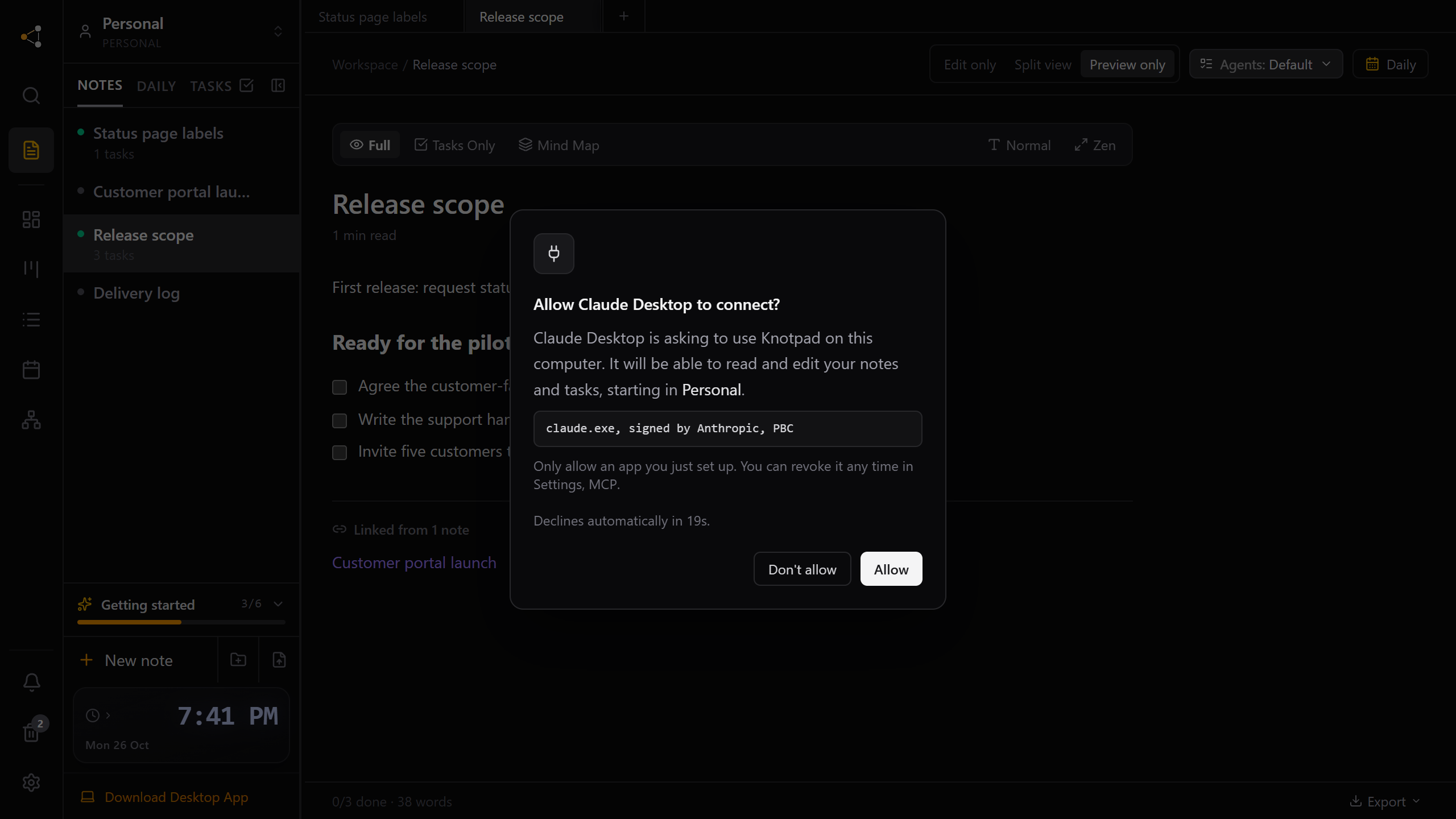
Choose which AI apps can open your project notes
On the Knotpad desktop app, each AI app asks once and you click Allow. No token to paste, and the approval belongs to that program.
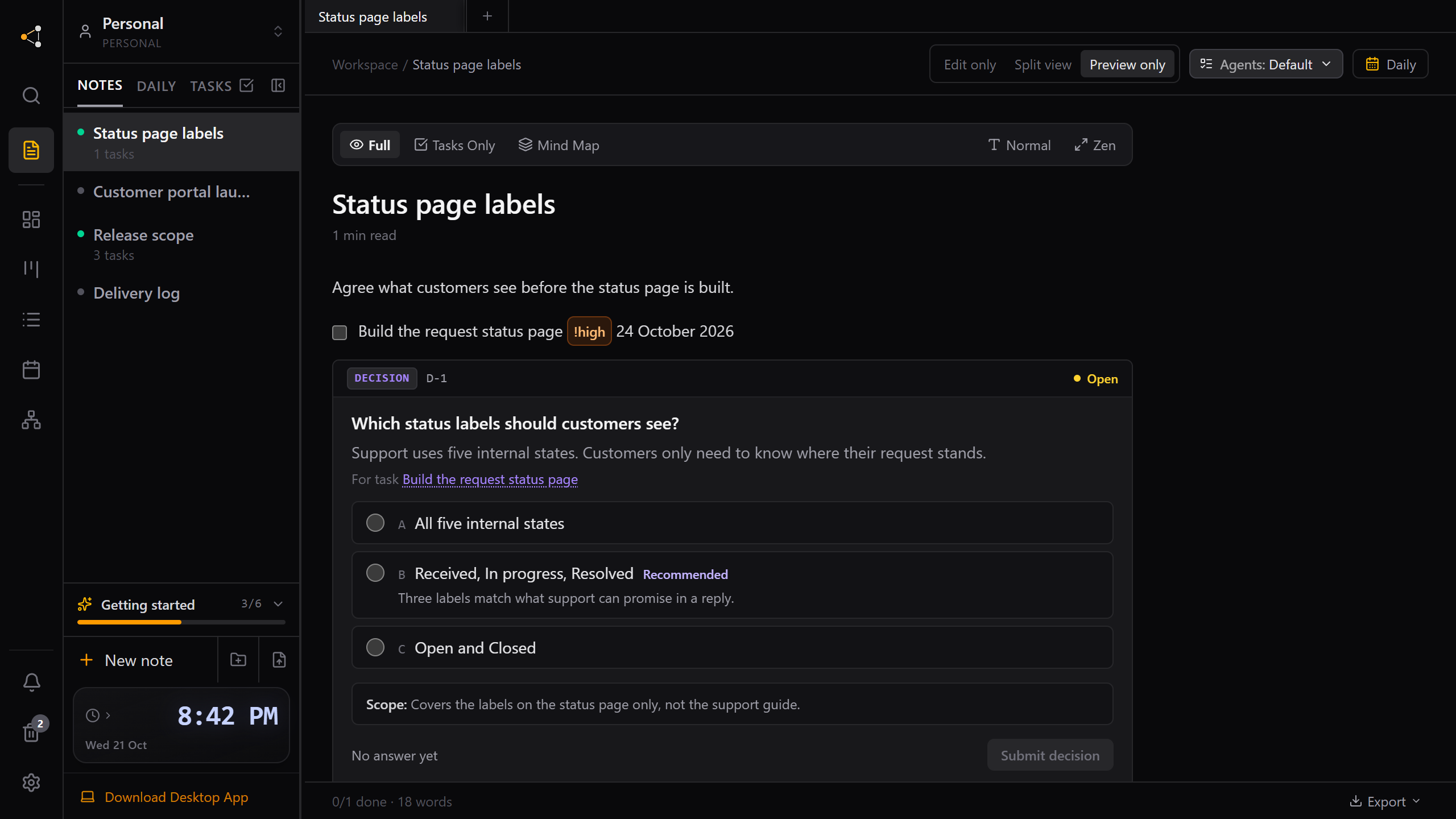
Answer your AI assistant's questions in the project, not the chat
When an assistant needs a choice from you, it can leave a decision card in the note. Answer when you are ready, and the next session picks it up.
A few things worth knowing.
Does Knotpad run the AI for me?
You connect your chosen AI client through MCP. That assistant does the work. Knotpad holds the project context and tracked tasks it can read and update.
Can I change assistants?
Yes, when the new client supports the connection and can access the workspace. It reads saved notes and task state. Private chat history from another service is not transferred.
Will every result be documented automatically?
Ask your connected assistant to record the outcome, checks and next steps. The connection makes write-back possible; a useful record still needs to be written.
Do I need an account?
A free local desktop workspace does not require one. Personal Pro in the browser, cloud sync, remote MCP and shared team workspaces require an account.
Can I use Knotpad on a Mac?
Yes. Use Personal Pro in your browser on Mac or Windows. Start with a 14-day free trial, with no card required. The free local desktop app is available for Windows.
Where can I get the app?
The primary Windows download is the Microsoft Store. Additional packages are linked as Experimental builds on the download page.
Give your next session a better starting point.
Use Knotpad in your browser on Mac or Windows, or start with the free Windows app. Add your brief, turn the plan into tasks, and connect your assistant when you’re ready.
Full Personal Pro access in your browser.
No card required.