
The reason should outlast the conversation.
A chat may explain why you chose an approach. A task may show that it is done. Keep the explanation in the project too, so the next person can understand the work.
How to connect your assistantGive each record a job
Use the brief for the intended outcome, a decisions note for durable choices, and a delivery log for completed work. Link them together instead of copying the same explanation into several places.
Ask for a record while the work is fresh
Before closing the session, ask your connected assistant to append the result, checks performed, unresolved questions and next steps. Connecting an assistant makes this possible; it does not automatically document every action.
Protect what should stay stable
Per-note permissions control assistant writes. Keep an agreed brief protected, allow progress to be appended to the log, and review significant changes. Full-note rewrites require explicit enablement.
Use diagrams where they help
A Mermaid flowchart can explain a process; a sequence can explain a handover. Keep the explanation and assumptions beside the chart. A written timeline is a plan, not an automatic report of task progress.
Try it in your project.
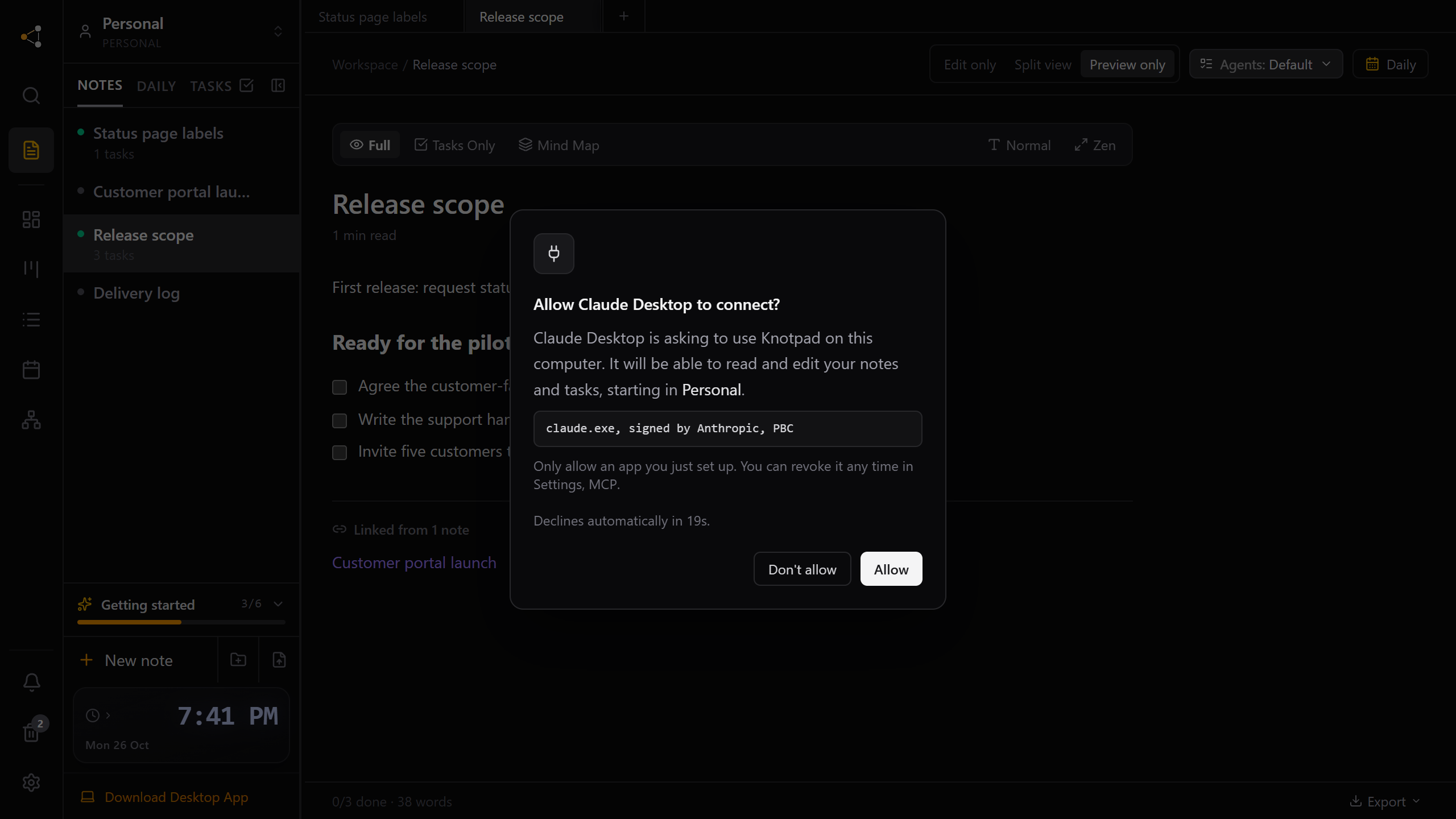
Choose which AI apps can open your project notes
On the Knotpad desktop app, each AI app asks once and you click Allow. No token to paste, and the approval belongs to that program.
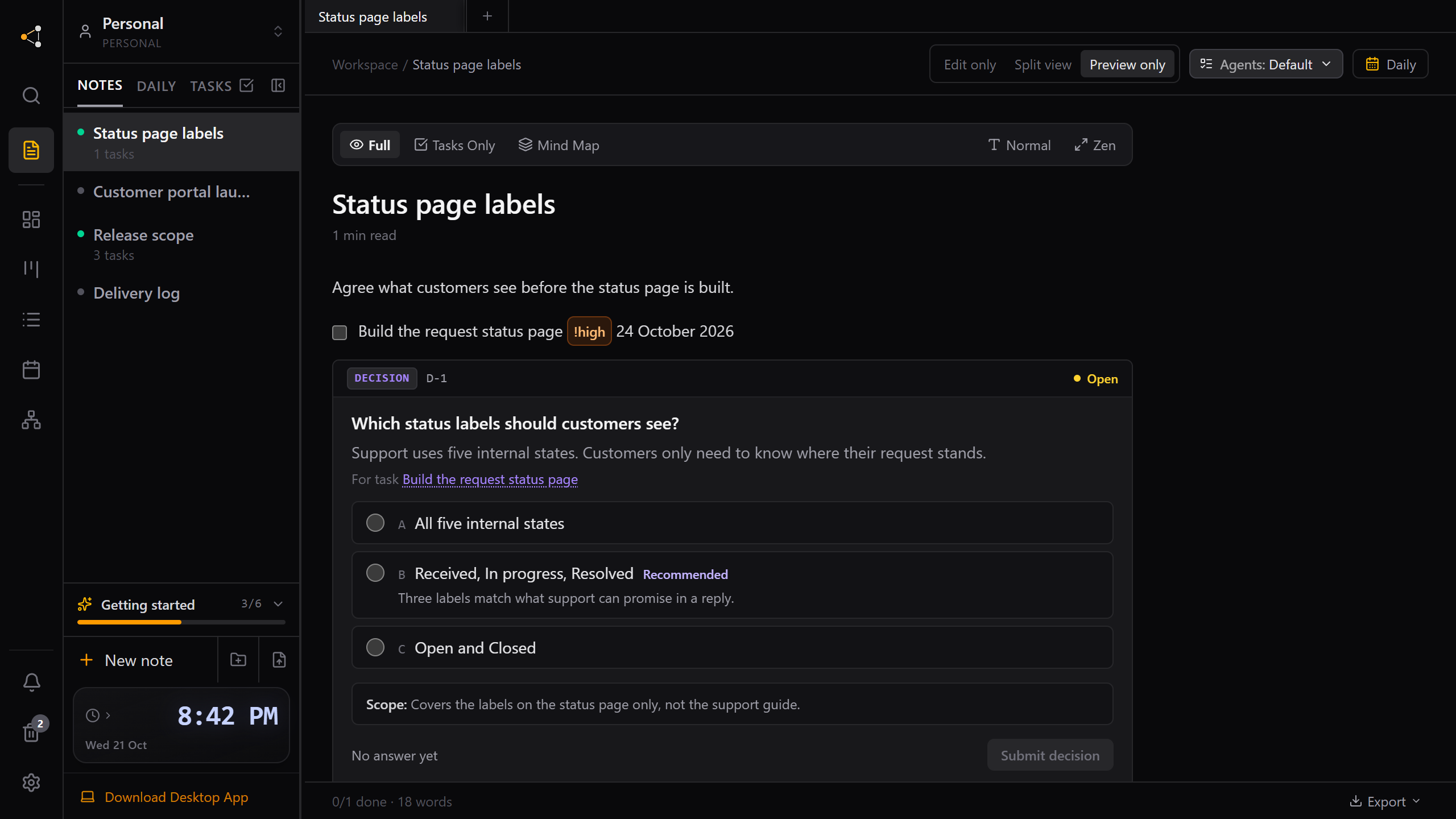
Answer your AI assistant's questions in the project, not the chat
When an assistant needs a choice from you, it can leave a decision card in the note. Answer when you are ready, and the next session picks it up.
Give your next session a better starting point.
Use Knotpad in your browser on Mac or Windows, or start with the free Windows app. Add your brief, turn the plan into tasks, and connect your assistant when you’re ready.
Full Personal Pro access in your browser.
No card required.