A weekly status meeting often starts with an hour of copying. Numbers go from the tracker into a slide, finished work into bullets, next week's dates into another slide. By Friday the deck is out of date, and on Monday you build it again.
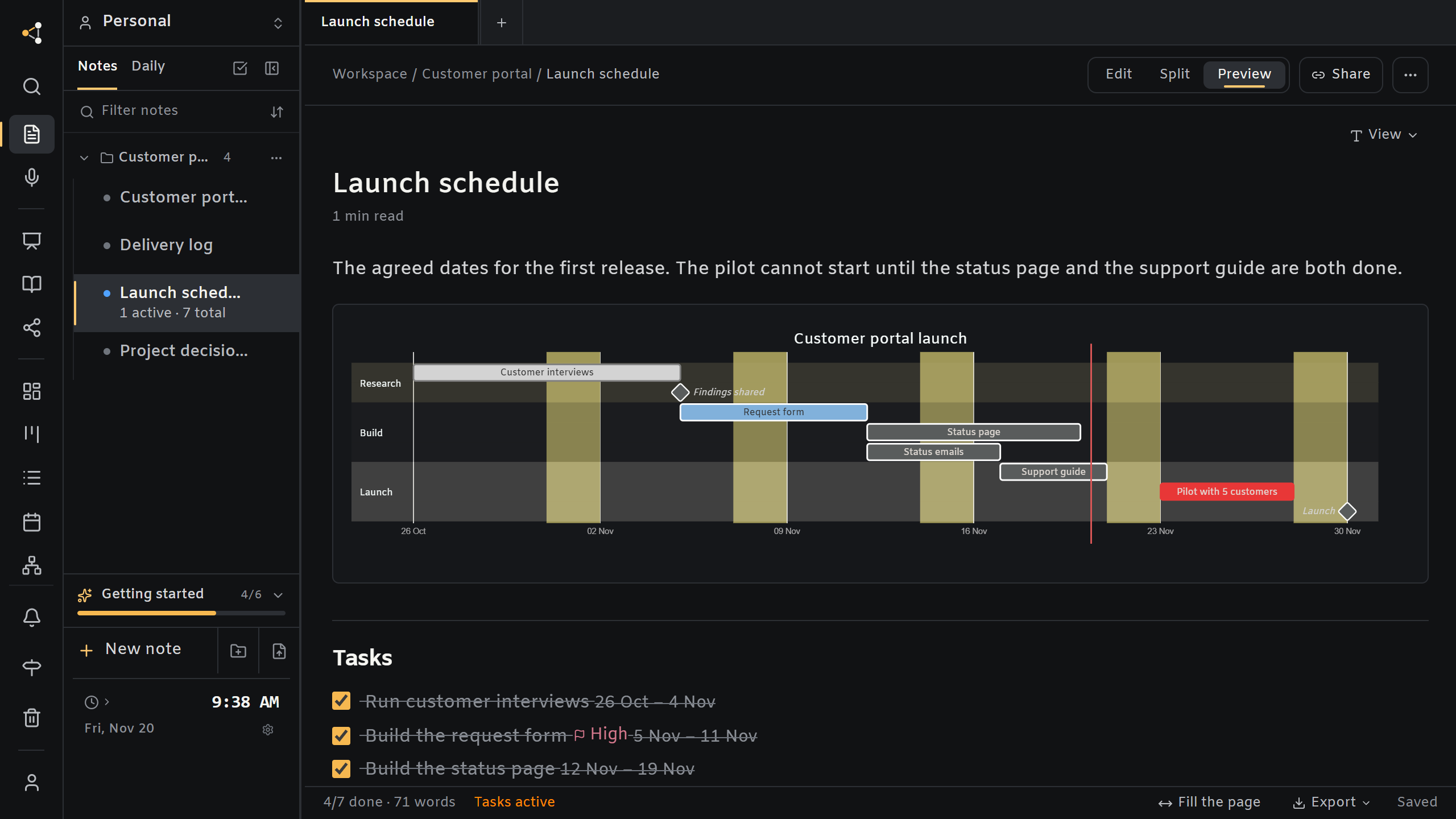
Knotpad keeps the plan, the count and the update in your notes. The plan holds the work and its steps, a block in the plan counts progress for you, and the update is a short note you present as it is. The example is the launch of a fictional customer portal.
Break each task into steps under it
In the plan note, indent a task line under another one to make it a subtask:
- [ ] Invoice page !high 2026-11-27
  - [x] List of invoices
  - [x] Download an invoice as PDF
  - [ ] Filter invoices by month 2026-11-25
Each subtask is a task of its own, with its own status and date. On the board and in List it sits under its parent, and the parent counts what is done. Invoice page shows "2 of 3 done" without anyone updating it.
See where the plan stands without counting
Put two blocks at the top of the plan. A progress block counts the done tasks in a note, and a tasks block lists the open ones due in the next 7 days, late ones included:
```progress
title: Launch plan
note: [[Customer portal launch]]
```

```tasks
note: [[Customer portal launch]]
due: week
```
Both read your tasks each time you open the note, so nobody types the numbers. The list puts the nearest date first. To count a whole project, name its folder instead: folder: Customer portal.
Write the update, then present the note
The update is a note too: one line of context, then a ## heading for each part. Present, in the side rail, shows any note as slides. Each ## heading starts a slide, and the text above the first heading is the opening slide.
On the opening slide, type this week's figures into a progress block, such as Build: 4/8 and Launch: 1/5. Each week gets its own note, so last week's update keeps last week's numbers.
Choose the note under Notes, then press Start presenting. The audience window shows the slide. Your window shows the next slide, a timer and your speaker notes, which the audience never sees. Type them in the presenter view and Knotpad saves them into the note under that slide. Move with the arrow keys or a clicker, and press B to black out the screen.
What it does not do yet
- Live blocks stay in the note. On a slide, a progress block draws only the lines you type into it, and a task list does not draw at all. The audience window has no workspace behind it.
- Plain slides on Free. Presenting notes and PDFs is free. Slide themes, and having your assistant make slides from your notes, need Pro.
- Pop-ups in the browser. On the web app, allow pop-ups for Knotpad so the audience window can open.
- Sharing is Pro. A shared page shows the update, but in place of a live block it says the list shows inside the workspace only.
Subtasks, the blocks and Present are on every plan. Download Knotpad or open it in your browser, and run next week's update from your plan.