You plan the release in ChatGPT, build it with Claude Code and ask Claude to check the wording. Each one remembers something now. None of them remembers the same thing. ChatGPT does not know what Claude Code finished yesterday, Claude does not know the decision you made in ChatGPT last week, and you paste the same background into every chat.
Built-in memory is not the problem. It is made for one app and mostly for you: your role, your preferences, the topics you come back to. Project work needs the decisions, what is done, what is half finished and what comes next, in one place every assistant can read. The examples use an illustrative customer portal project.
What ChatGPT and Claude memory do well
Both remember across chats, and both let you see and correct what they keep.
- ChatGPT keeps a memory summary built from what you asked it to save and from past chats, and you can read and edit it in settings. A Project can use project-only memory, so its chats stay apart from the rest, and you can share a project with other ChatGPT users.
- Claude keeps memory as a list of topics you can read, edit or delete, and paid plans can search past chats. Each Project has its own memory, and Team and Enterprise plans can share projects.
Use them for what stays true about you: how you like answers written, your role, the tools you use.
Where they fall short for project work
- Each memory stays in its own app. ChatGPT's memory does not reach Claude. Even the coding tools keep their own: Claude Code reads CLAUDE.md files and its own auto memory, and Codex keeps a separate local memory.
- Copying memory across is a one-off. Claude can import memory you paste from another assistant, and the ChatGPT desktop app can import from Claude Code and Cursor. After the copy, the two drift apart again.
- The assistant decides what to keep. OpenAI's help page says the memory summary may leave details out. It is a summary written for one assistant, not a record of decisions, progress and next steps.
- There are no tasks. Memory cannot tell you what is open, who has it or whether anyone checked it.
The options compared
| Option | Lives in | Read by | Best for |
|---|---|---|---|
| ChatGPT memory and Projects | ChatGPT | ChatGPT, and people you share a project with | Your preferences, one topic's chats and files |
| Claude memory and Projects | Claude | Claude, and teammates on Team or Enterprise | The same, inside Claude |
| A rules file such as CLAUDE.md or AGENTS.md | Your repository | Coding assistants | Standing rules and commands |
| A project workspace connected over MCP | The workspace | Every connected assistant, and your team | Decisions, progress and tasks |
MCP (Model Context Protocol) is the open standard that ChatGPT, Claude and most coding tools use to connect to outside tools, so one workspace can serve all of them.
Keep the project where every assistant can read it
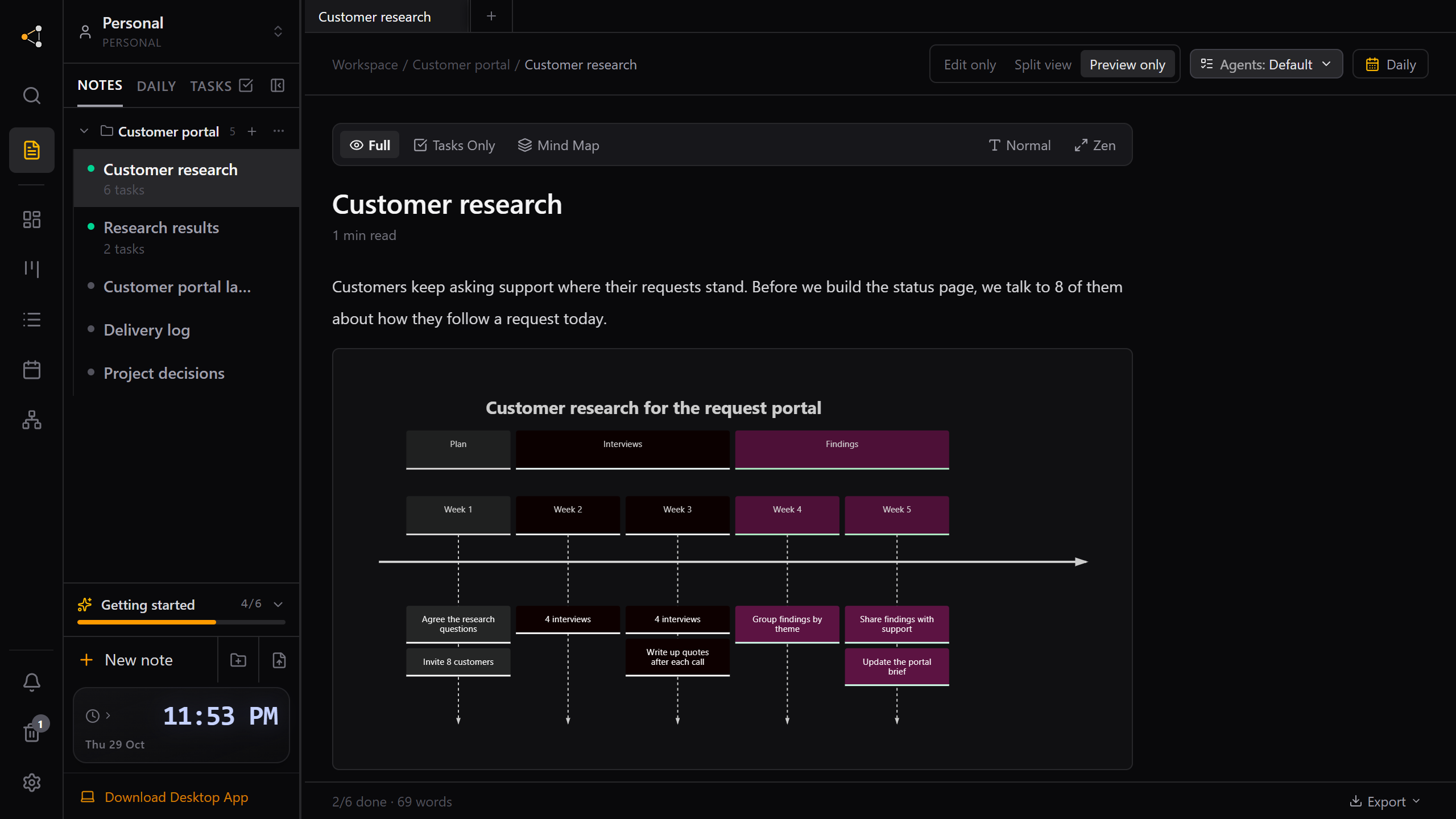
Knotpad keeps the brief, the decisions, a delivery log and tracked tasks for each project. A connected assistant starts a session by reading an overview of the workspace, ranked against what you asked, and writes back what it did before it stops. By default it can add to a note and update task lines, but it cannot rewrite what you wrote.
Connect each assistant once:
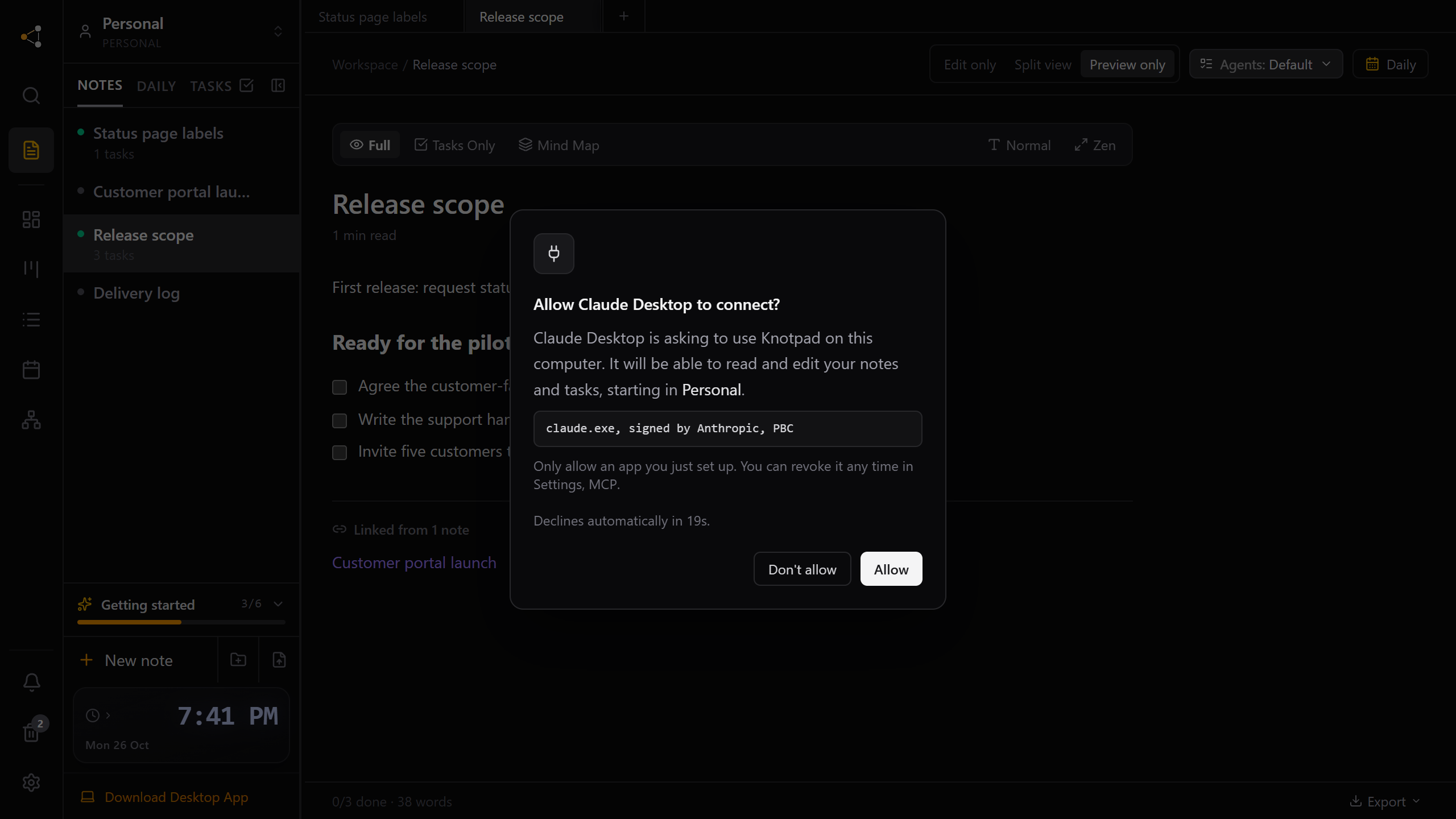
- Claude Desktop, Claude Code, Cursor and Codex on Windows: the free Knotpad desktop app connects on your computer. You click Allow the first time each app connects.
- claude.ai and ChatGPT: with Personal Pro ($9 a month, 14 days free without a card), copy the MCP URL from Settings, MCP in Knotpad on the web and add it as a custom connector, then sign in with your Knotpad account. In ChatGPT it is under Plugins, Add custom MCP server. We have connected ChatGPT this way on its Free and Plus plans. Claude allows custom connectors on every plan, one on Free.
Hand work from one assistant to the next
End each session by asking the assistant to write down what it did:
Add a dated entry to the delivery log: what you changed, what you checked and what is still open. Tick the tasks you finished.
Start the next one, in any app, from the project instead of from memory:
Read the Knotpad overview for the customer portal and the latest delivery log entry. Pick the next open task and tell me your plan before you start.
The delivery log then reads as one record, whichever app wrote each entry.
Keep both
Built-in memory and a project workspace do different jobs. Leave memory on for your preferences and keep project state in the project. If an assistant's memory and the project disagree, tell it the project wins.
What this does not do
Knotpad does not import ChatGPT or Claude memory or chat history. An assistant knows what earlier sessions wrote down, so a session that ends without writing back leaves nothing new. What each AI service does with the notes it reads follows that service's own terms.
Stop re-explaining your project at the start of every session, or connect your assistant to start.