You ask an AI assistant to update a project note. It hands back a tidier version, and somewhere in the rewrite a decision you made last week, a caveat about a customer or your own wording is gone. Nothing warned you. You notice days later, if at all.
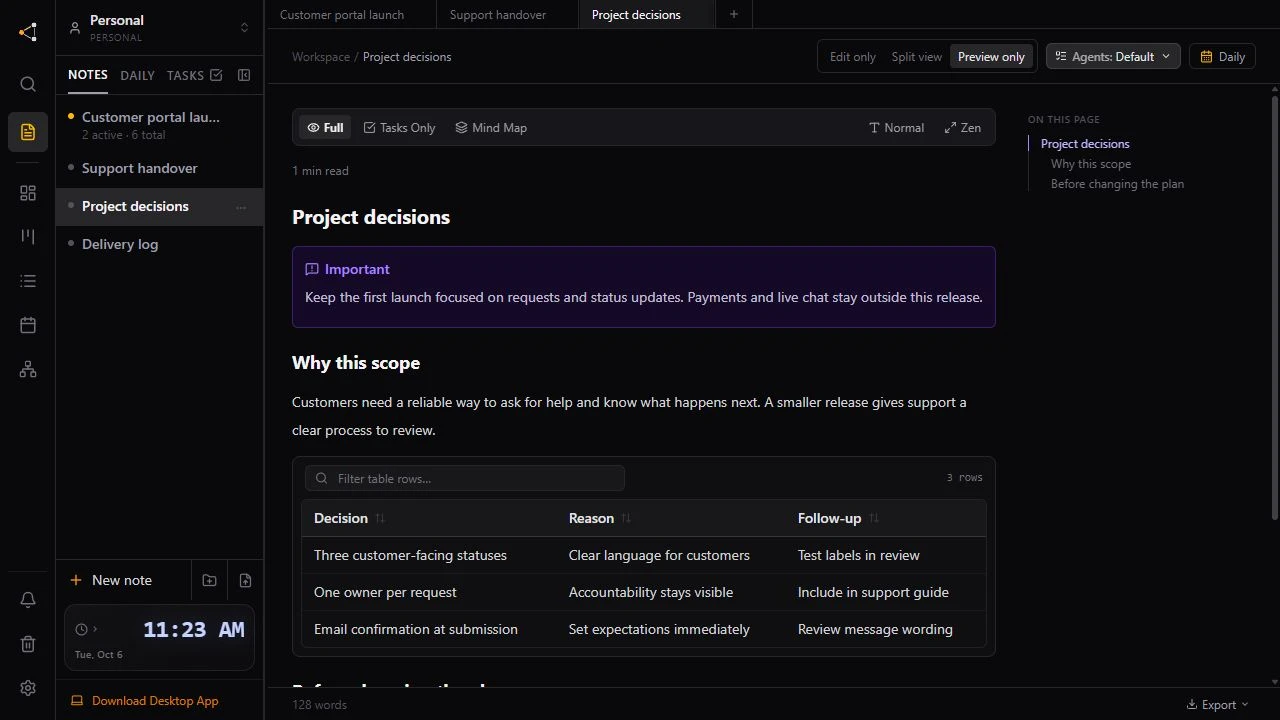
Knotpad lets you decide, note by note, how much a connected assistant may change. By default it can add to a note and update its task lines, but it cannot rewrite what you wrote. The examples use an illustrative customer portal project.
Choose how much each note can change
Every note has an Agents setting in its top bar, with three choices:
- Locked: nobody edits it, you included, until you unlock it. Use it for a signed-off scope.
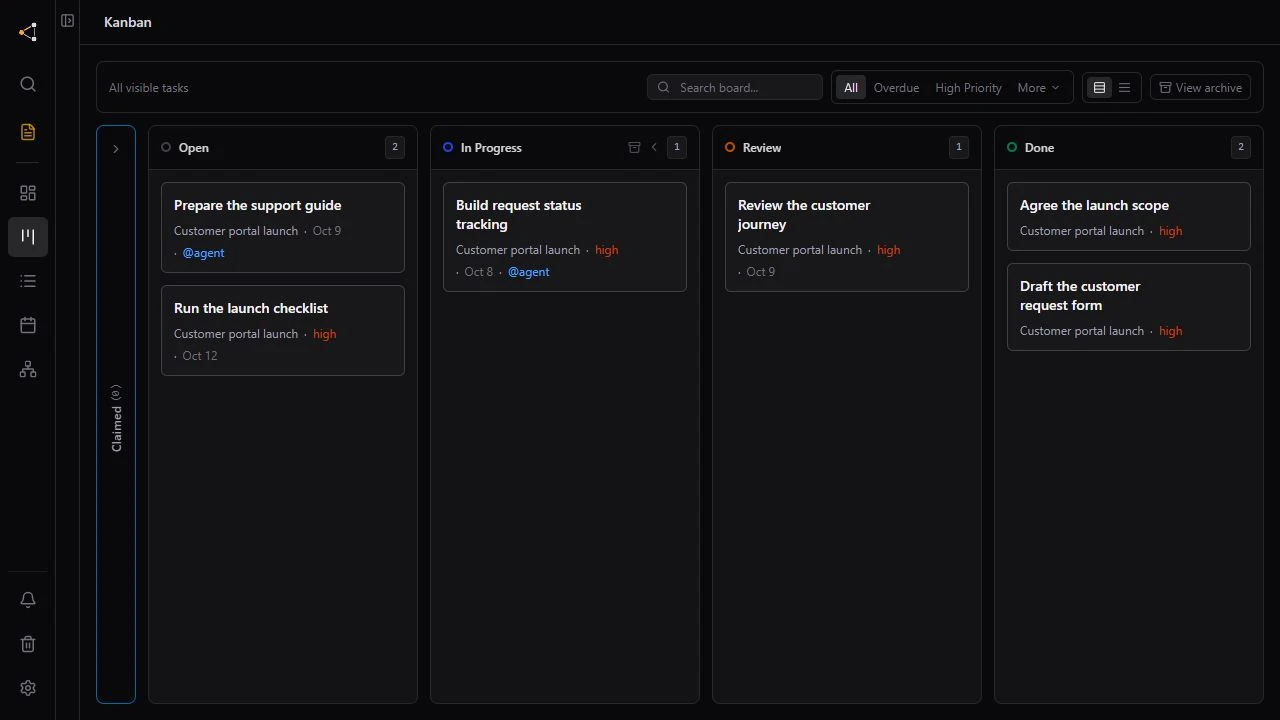
- Default: the assistant can add new sections and change task lines (ticks, dates, priorities, who a task is assigned to), but not the writing around them.
- Full edit: the assistant may rewrite the whole note. Use it for drafts you want restructured.
Everything starts on Default, including what the assistant writes itself. Full edit is something you switch on one note at a time.
Ask for an addition, not a rewrite
Most project updates are additions anyway: what changed, what was checked, what comes next. On a Default note, a rewrite is refused, and the connection tells the assistant to add a section or edit the task lines instead. A clear instruction saves that round trip:
Add today's result to the delivery log as a new dated section. Tick the tasks you finished and leave the rest of the note as it is.
New sections go at the end, below everything already there, so the page reads as a record:
## 20 October: status page ready for review
The page lists each request with its owner and last update.
Not yet checked on a phone.
Keep the top of the note current
A page that only grows gets long. Each one can open with a short summary: what it is, where it stands and what is next. The assistant may rewrite that summary even on a Default note, because the old one moves to the bottom instead of disappearing.
Use Full edit on purpose
Some notes should be rewritten: a rough draft, a messy brainstorm, a plan you want reorganised. Switch that note to Full edit, ask for the rewrite, read the result, then switch it back to Default. Knotpad does not keep earlier versions of a note, so copy anything you want to keep before you ask.
Deleting has its own safeguard
An assistant can move a note to the Trash, where it stays for 30 days, and only a person can empty the Trash. A locked note cannot be moved there at all.
What this does not cover
The Agents setting applies to what an assistant does through its Knotpad connection. It does not protect files in your code editor or documents in other apps, and Full edit lets the assistant replace that page entirely.
Keep a delivery log the assistant adds to, or connect your assistant to start.